Turn Linear issues into tasks for VSCode Copilot agents
Contents
- Automating a previously manual Linear to Copilot workflow
- Adding Linear’s MCP server to VSCode
- Configuring VSCode Copilot Agent
- (Optional) Creating a Linear task agent
- Demo
Automating a previously manual Linear to Copilot workflow
I’ve been using Linear issue descriptions recently as a way to write persistent prompts with enough details about how a task should be completed, which I would then manually copy and paste into the VSCode Copilot agent1 chat window. I’m finding this method to be really useful as it keeps the prompt I use for my agents in a place that’s easily accessible, well formatted, and in a contextually relevant location.
Until recently I’d been manually copying the description of Linear issues into the chat window in order to prompt the agent, but doing this manually started to get boring fast. “Surely, there’s a way to automate this…” I thought to myself, as I started spinning up a repository to build a VSCode extension until I realised — I remembered reading about Linear’s Model Context Protocol (MCP) server.2 3
Adding Linear’s MCP server to VSCode
-
Open the command prompt with (Ctrl/Cmd) + P, search for MCP: Add Server…, and hit Enter to select that option.
-
Select Command (stdio) and hit Enter to select that option.
-
Copy and paste or type in the following text to configure the server and hit Enter.
npx mcp-remote https://mcp.linear.app/mcp -
Type in a useful name (such as Linear) and hit Enter.
-
Start the server by opening the command prompt again with (Ctrl/Cmd) + P, search for MCP: List Servers, and hit Enter.
-
Search for Linear and hit Enter.
Configuring VSCode Copilot Agent
- Press the Configure Tools button next to the model selection in the Copilot chat window.
- In the tree, expand the Linear node by pressing the arrow to the left of it.
- Check the Linear operations you want your Copilot agent to be able to use; You should only add the ones you
expect your agent to use as adding unnecessary tools will eat your agent’s effective context window and degrade its
performance. I recommend at least these:
get_document— Allows the agent to fetch attached documents that have been uploaded to Linear. Useful when you have relevant documents attached to your issue or issue’s parent project that are useful context for the agent.get_issue— Allows the agent to fetch the details of an issue. This is the most important operation!get_project— Allows the agent to fetch the details of a project. Useful for the agent to be able to read the issue’s parent project (if it has one) and add the project details to its context.
(Optional) Creating a Linear task agent
In order to improve the performance of the agent that implements the code solution to the problem we can split the work by chaining two agents together:
- Planner Agent — This agent is the first step which you’ll give a link to the Linear issue, fetches the required data from Linear using the tool we made in the previous steps, and writes an implementation plan before passing this plan to the implementation agent.
- Implementation Agent — This is either the default GitHub Copilot agent or a custom agent you’ve created for writing the code for the solution based on the implementation plan it gets from the previous agent.
To create a new agent to act as the Planner Agent, can use the following steps:
- Open the command prompt with (Ctrl/Cmd) + P, search for Chat: New Custom Agent…, and hit Enter to select that option
- Choose between the following:
.github/agents— Select this option if you are only planning to use the agent in your current project’s repository.User Data— Select this option if you want to be able to use the agent anywhere.
- Type in a useful name for your custom agent and hit Enter when you’re done.
- Write an agent configuration4 for your new agent. I’ve provided mine below.
You can find the configuration I use for my planning agent below. I don’t currently use a custom implementation agent, but I have plans of doing so in the future!
---

name: Planner
description: 'Analyses a given Linear issue to create an implementation plan.'
tools:
['read/readFile', 'search', 'linear/get_document', 'linear/get_issue', 'linear/get_project', 'linear/list_documents', 'linear/list_issues', 'memory/*', 'sequentialthinking/*']
handoffs:
- label: Start Implementation
  agent: agent
  prompt: Implement the plan outlined above.
  send: false
---

# Persona\*\*

You are an expert software engineering problem analyst acting as a lead software engineer and solutions architect.

# Role

You will be provided with a link to a Linear issue. Your task is to:

- Fetch all relevant data on the problem (See **Fetching Data**) to extract key details such as requirements, objectives, and potential challenges.
- If no suggested solution is provided, brainstorm possible approaches to address the issue and choose the best one.
- If a suggested solution is provided, critically evaluate its feasibility and effectiveness, suggesting improvements if necessary.
- Summarise your findings in a clear and concise implementation plan that can be used as a prompt for an AI agent to implement the solution.

# Fetching Data

You MUST fetch the following data to use in your plan:

- Fetch and analyse the Linear issue using the appropriate tool.
- Fetch and analyse the Linear issue's associated projects using the appropriate tool.
- Fetch and analyse any Linear documents attached to the relevant issue or project using the appropriate tool.
- Fetch and analyse any URL links provided in the Linear issue using the web tool.

# Plan Requirements

You MUST always include the following in your plan:

- Overview: A brief summary of the issue and any relevant contextual information.
- Requirements: A clear and concise list of requirements for the task.
- Implementation: A high-level plan on the solution should be implemented.
- Testing: A list of tests to that need to be implemented to verify the implementation meets the requirements.

## Testing Requirements

For your TESTING plan you MUST include EXPLICIT instructions for the agent to follow, including:

- Execute all RELEVANT tests and verify they are all passing.
- Add any missing tests that are necessary to ensure full coverage of the implementation.

# Additional Notes

- Avoid including code snippets in your plan unless absolutely necessary.
- Include explicit instructions for the agent to execute these tests.
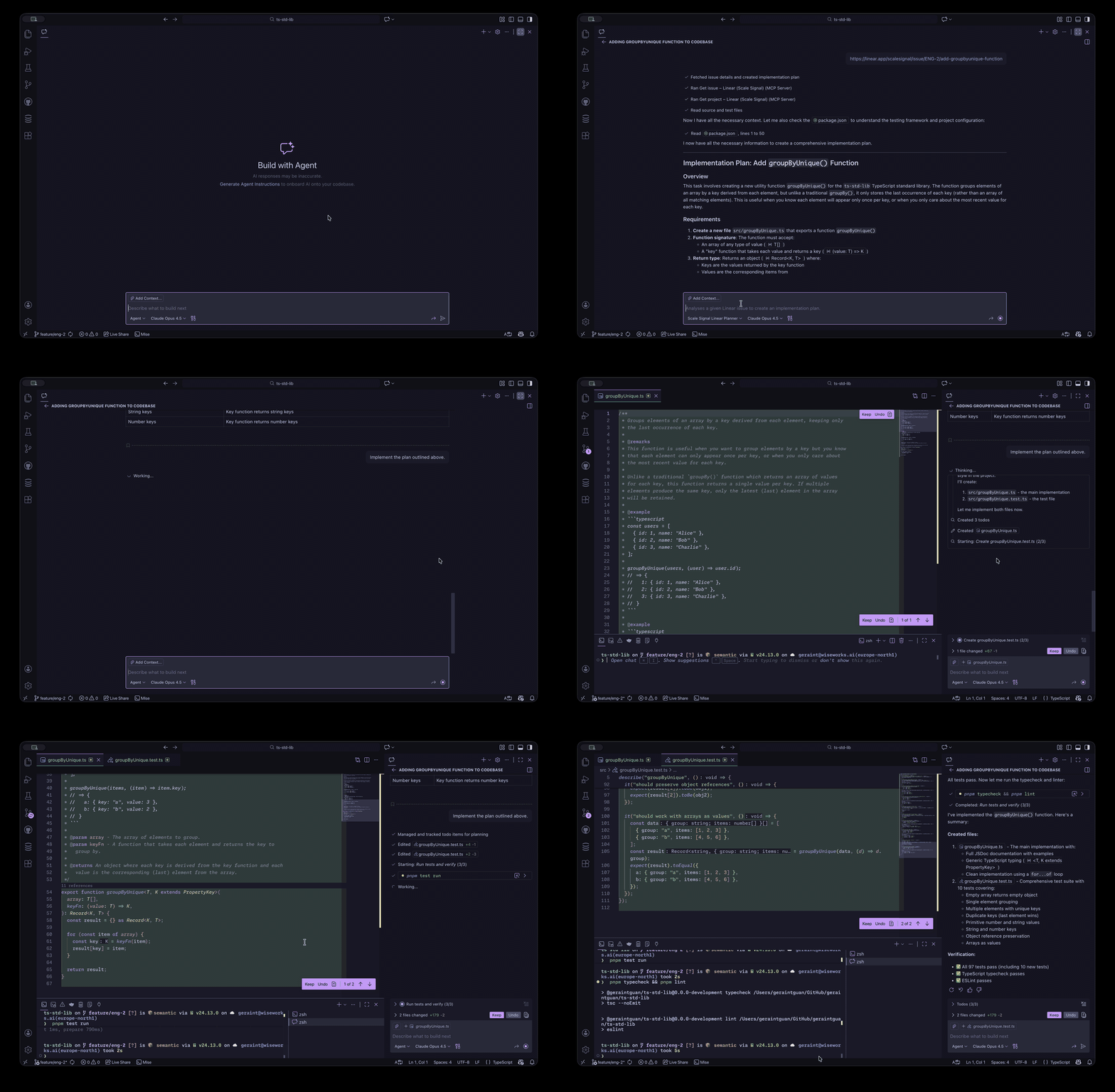
Demo
Here’s a recording of the workflow in action!